Read the aggregated grid
As participants add their times, the event page's grid shows everyone's availability stacked together. The darker a cell, the more people are available at that slot. The darkest cells are your best candidate times for getting everyone together.
Scroll through and compare the color intensity across dates and time slots. You can tell at a glance where the most people overlap.
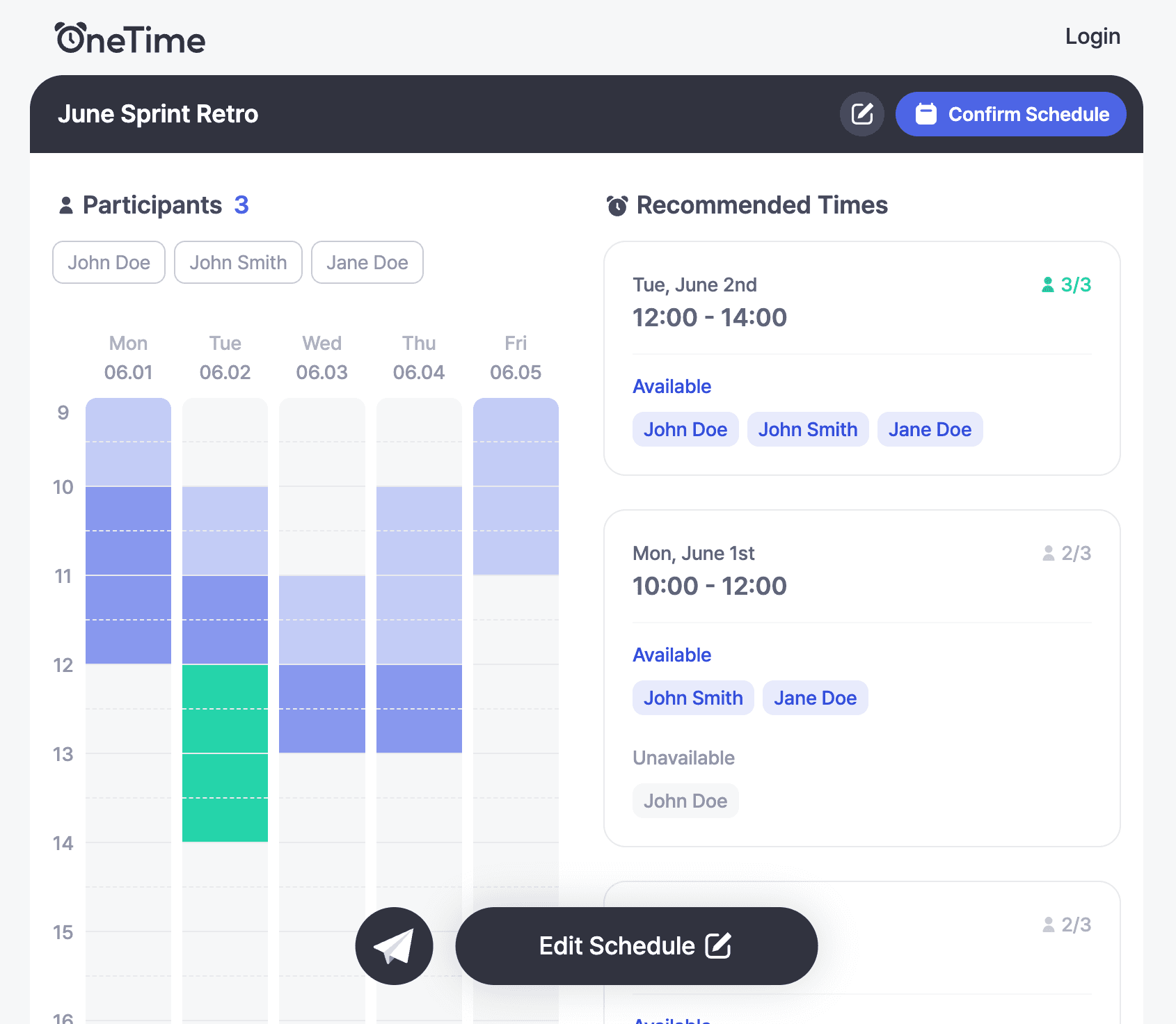
TipSlots where everyone is available are highlighted in green, so they're easy to spot at a glance.
Use recommended times
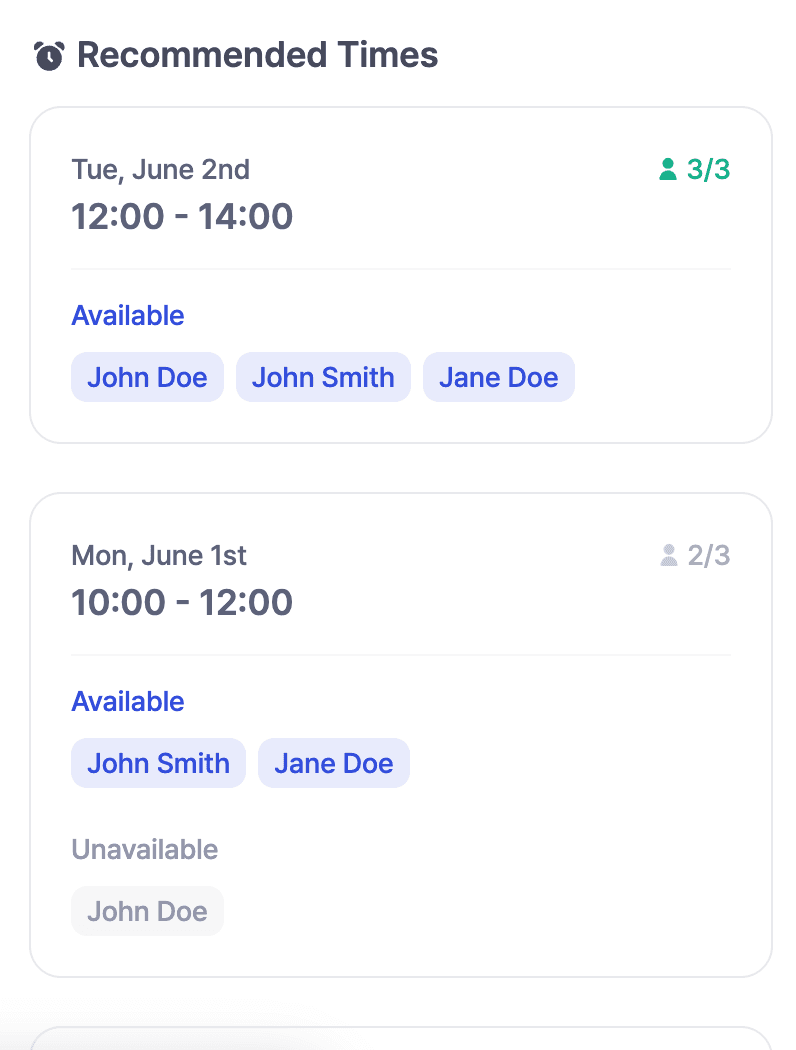
You don't have to compare the grid by hand — OneTime recommends the slots where the most people are available. Recommended times help you narrow the options quickly, which is especially handy for larger groups.
Check by participant
Want to know whether a specific person is free? Use the participant filter.
- See who has responded and who hasn't submitted their times yet.
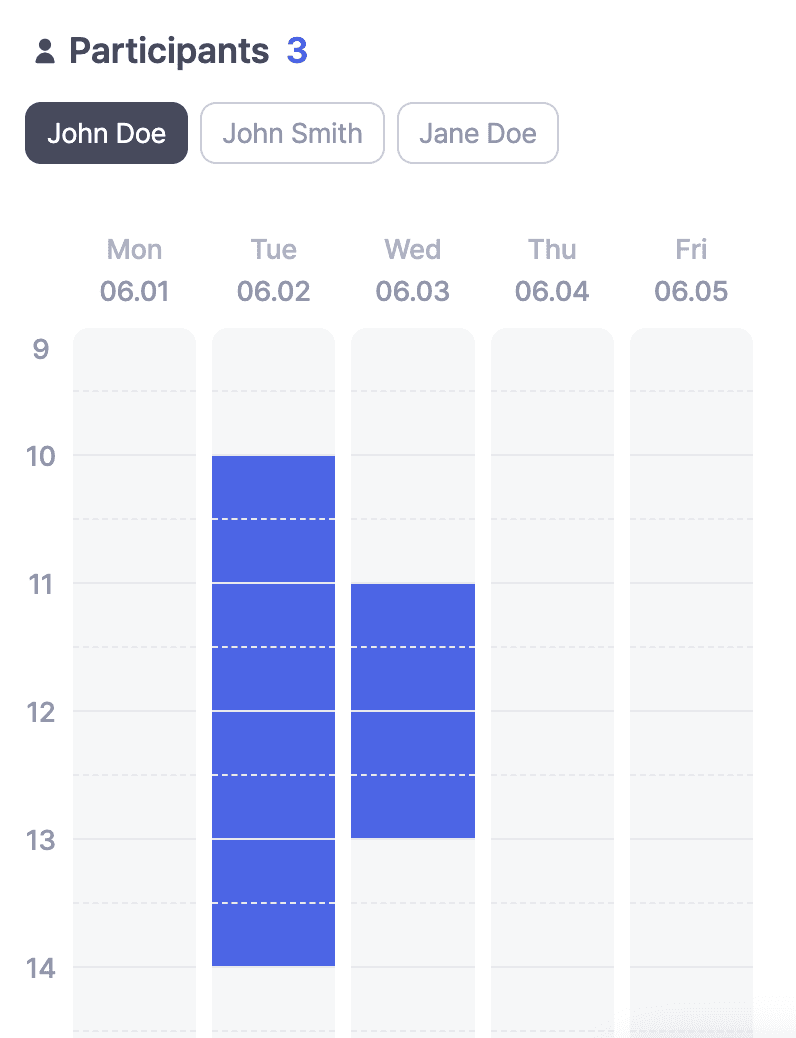
- Select one participant to view only their availability.
- Select several participants to see their availability stacked, revealing when that exact group can meet.
- Easily spot who would be missing from a given slot — useful when key people must attend.
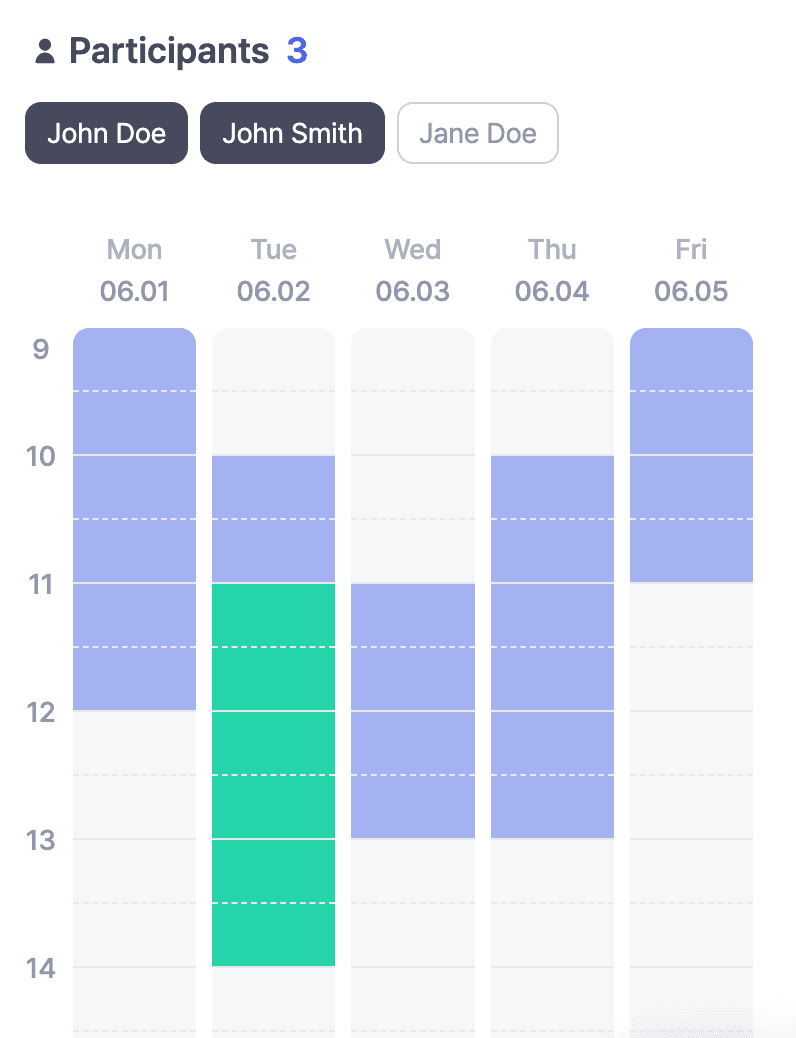
TipWhen you select participants, the recommended times on the right update to match your selection too.
Next step
Once you've zeroed in on candidate times, it's time to share the event more widely and confirm the final time. The next article covers sharing and confirming the schedule.